
Google Cloud Storage (GCS) Source
In order to setup Google Cloud Storage as a data source, you need admin access to IAM and Google Cloud Storage (GCS).
Setting up GCS and IAM user
Create a GCS bucket (or use an existing one) to store the data you want to share with Monda. To create a new GCS bucket, you can find instructions in the Cloud Storage documentation.
Populate the data for each distinct data product into a separate folder within the bucket.
Create a custom IAM role for Monda with the following settings and permissions:
Stage: GA
Permissions:
storage.buckets.get
storage.objects.get
storage.objects.list
Sample custom role (JSON):
{
    "title": "CustomStorageRole",
    "description": "Custom role for accessing specific Cloud Storage bucket",
    "stage": "GA",
    "includedPermissions": [
        "storage.buckets.get",
        "storage.objects.get",
        "storage.objects.list"
    ]
}
Create a GCP service account for Monda.
Assign the custom IAM role you just created to this service account.
Copy the service account email - you’ll need it shortly.
Generate a service account key (JSON).
Download the key file from the GCP Console
Grant access to the bucket for the service account.
Go to your GCS bucket permissions
Under Add principals, paste the service account email
Under Assign roles, select the custom role you created
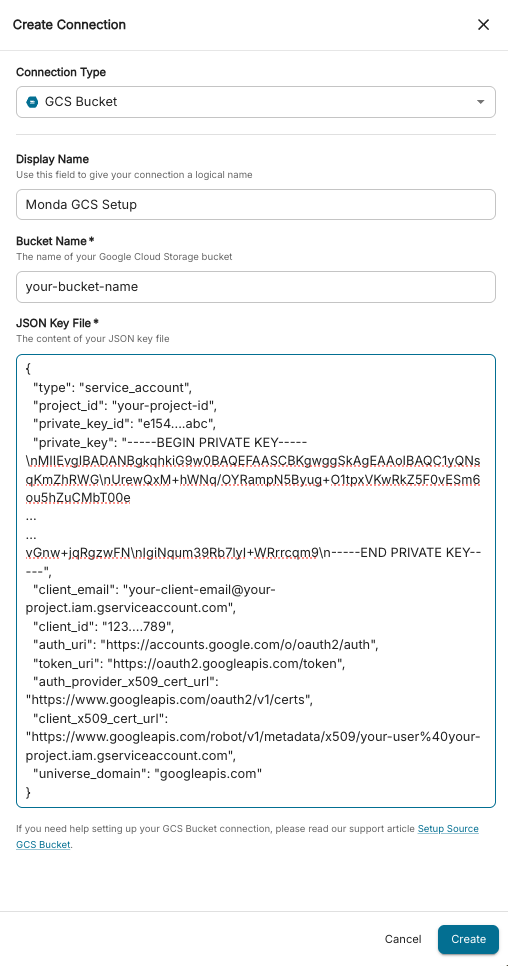
Connect the bucket to Monda
In your Provider Portal, go to Onboard > Sources > Add Connection.
Select GCS Bucket from the dropdown menu.
Admins must provide the following information:
GCS Bucket Name: the name of your GCS bucket
Key: the JSON key file you downloaded earlier
Click Create. After the connection is established, you can test it via the Test Connection button.

FAQ
Can I use an existing service account?
Yes, as long as:
The service account has the correct permissions.
You have access to a valid JSON key file.
You grant the service account access to the specific GCS bucket.
What happens if the service account key expires, or is deleted?
Monda will no longer be able to connect to your data. You'll need to:
Generate a new key.
Update the connection in the Provider Portal with the new key file.
Can I use the same service account for multiple GCS buckets?
Yes. As long as the service account has the necessary permissions on each bucket, it can be reused. However, each bucket still requires a separate connection in Monda.
Does Monda support folders inside GCS buckets?
Yes. For the best results:
Store each data product in its own folder.
Make sure all files in a folder have the same schema (same columns and types). Learn more about preparing your data in the Data Sources Overview guide.
Can I create a connection using an API instead of the UI (Provider Portal)?
Yes! See our API documentation for creating and managing your connections programmatically.